TL;DR. A Completed removal order does not always mean every unit has arrived. Amazon often splits one order into several shipments — match each tracking number, then reconcile requested, shipped, and received quantities before you open a claim.
You requested a removal, Seller Central shows the order as Completed, and the first boxes have arrived short. Before you assume Amazon lost the rest, check whether those units are still on the way.
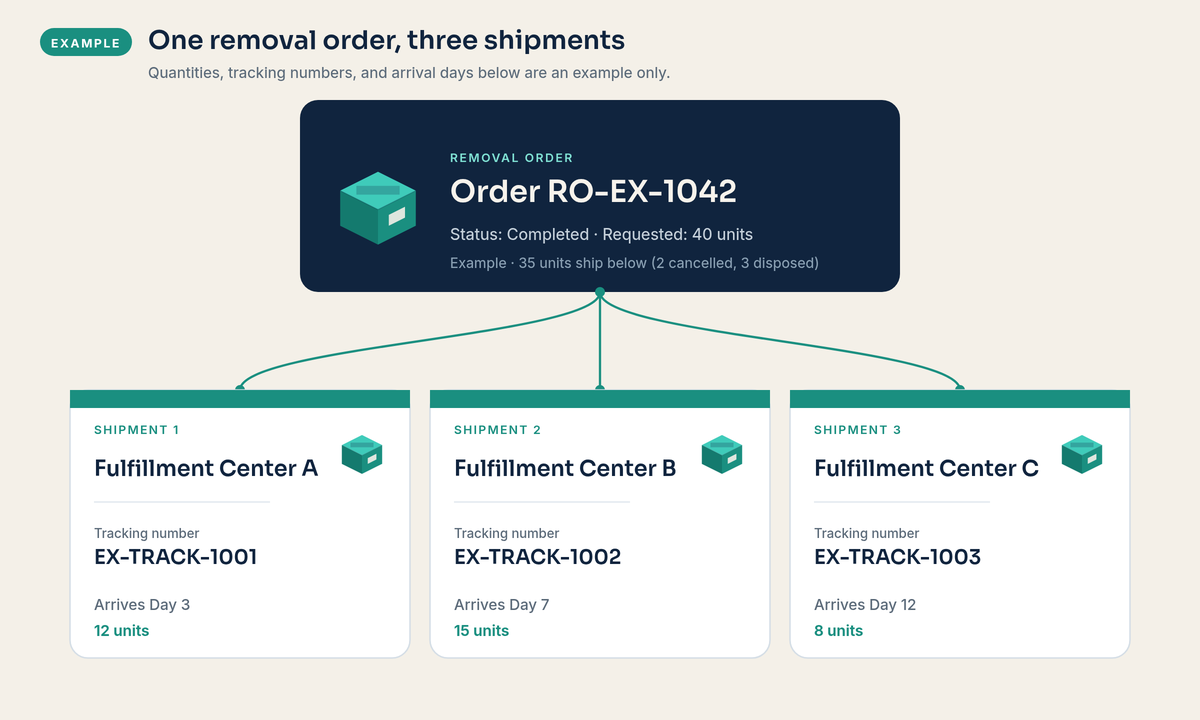
Amazon often splits one removal order into several shipments.
Those packages can leave different fulfillment centers on different days, each with its own carrier and tracking number.
"Completed" usually means Amazon has finished processing the order — the units have been shipped, cancelled, or disposed of — not that every box is already in your hands.
Why one removal arrives as several shipments
Your inventory is rarely sitting in a single fulfillment center.
When you ask Amazon to return units, each center can ship its portion separately, so a modest removal can turn into several parcels that arrive days or weeks apart.
Units that look missing may still be in transit, or they may have been cancelled or disposed of instead of being sent back to you.
Start with two Seller Central reports
You need both reports, not just one. In Seller Central, go to Reports > Fulfillment, then open the Removals section.
Removal Order Detail is the order-level view. Amazon's documentation describes it as the report you use to reconcile the units you requested for removal with the units actually removed, and to see the status of each item.
For each SKU, look for the order ID and order status, plus requested, cancelled, disposed, shipped, and in-process quantities. You will also see the SKU, FNSKU, and disposition.
Removal Shipment Detail is the shipment-level view. It provides tracking information for units that have actually shipped, including the shipment date, carrier, tracking number, and shipped quantity for each SKU in that shipment.
Amazon's documentation notes that this report does not include cancelled or disposed items. It is only for shipment information.
Download both reports for a date range that covers the removal, then filter each file by the same order ID.
How to reconcile the numbers
Work SKU by SKU, then box by box.
First, use Removal Order Detail to calculate what should come back:
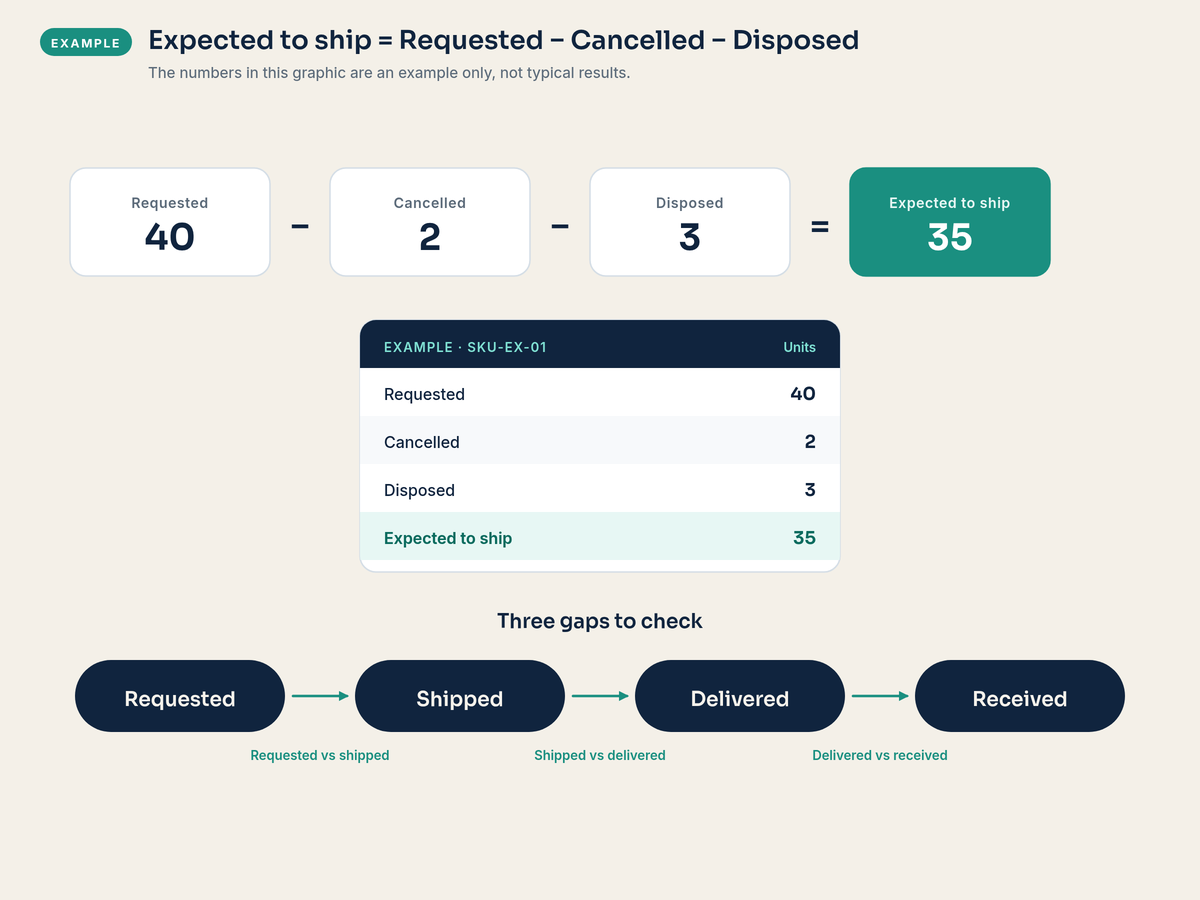
Expected to ship = requested quantity minus cancelled quantity minus disposed quantity.
If the in-process quantity is still greater than zero, Amazon has not finished shipping every unit. Give those units more time and refresh the reports later.
Next, compare that expected figure with the shipped quantity on the same report, and with the sum of shipped quantities in Removal Shipment Detail for that order and SKU. Those two shipped totals should line up.
A gap between what you requested and what was shipped is often explained by cancelled or disposed units, so confirm those columns instead of assuming the units vanished.
Then match every tracking number in Removal Shipment Detail. Check each one with the carrier, and log whether the package is still in transit, delivered, or showing no movement.
When a box arrives, count the units inside against the shipped quantity for that tracking number and SKU, not against the original requested quantity for the whole order.
You are looking for three kinds of gaps:
- Requested versus shipped. Units never left the fulfillment network, or they were cancelled or disposed of.
- Shipped versus delivered. A tracking number never shows delivery.
- Delivered versus received. The carrier marks the box delivered, but the count or condition does not match what Amazon said it shipped.
Photograph sealed boxes that arrive damaged, and keep a simple receiving log: order ID, tracking number, date received, expected quantity, counted quantity, and notes on condition.
When to wait, and when to open a case
Wait when tracking still shows a package in transit, when the in-process quantity is not yet zero, or when you have not accounted for every tracking number on the shipment report.
Split shipments often arrive days apart, so a short first delivery is not, by itself, a shortage.
Open a case when you have finished that check and a real discrepancy remains: a shipment with no useful tracking movement, a delivered package you never received, a box that arrived short, or units damaged in transit.
Before you file, check the Reimbursements report in Seller Central to make sure Amazon has not already credited the same units.
Then read the current FBA inventory reimbursement policy, specifically the Removals claims section. The claim windows differ for units lost in transit, units damaged in transit, and grading disputes, and Amazon updates those windows from time to time.
Lost-in-transit claims usually cannot be filed immediately; Amazon expects you to wait until the shipment has had time to arrive after its last confirmed movement. Do not file so early that the claim is rejected as premature, and do not wait so long that the window closes.
When you file, use Seller Support or the removal-order claims tool in Seller Central. Include the removal order ID; each relevant tracking number, shipment date, and carrier status; the SKU or FNSKU and the quantities requested, shipped, and received; photos of damaged boxes or units, if that is the issue; and a short explanation of the discrepancy.
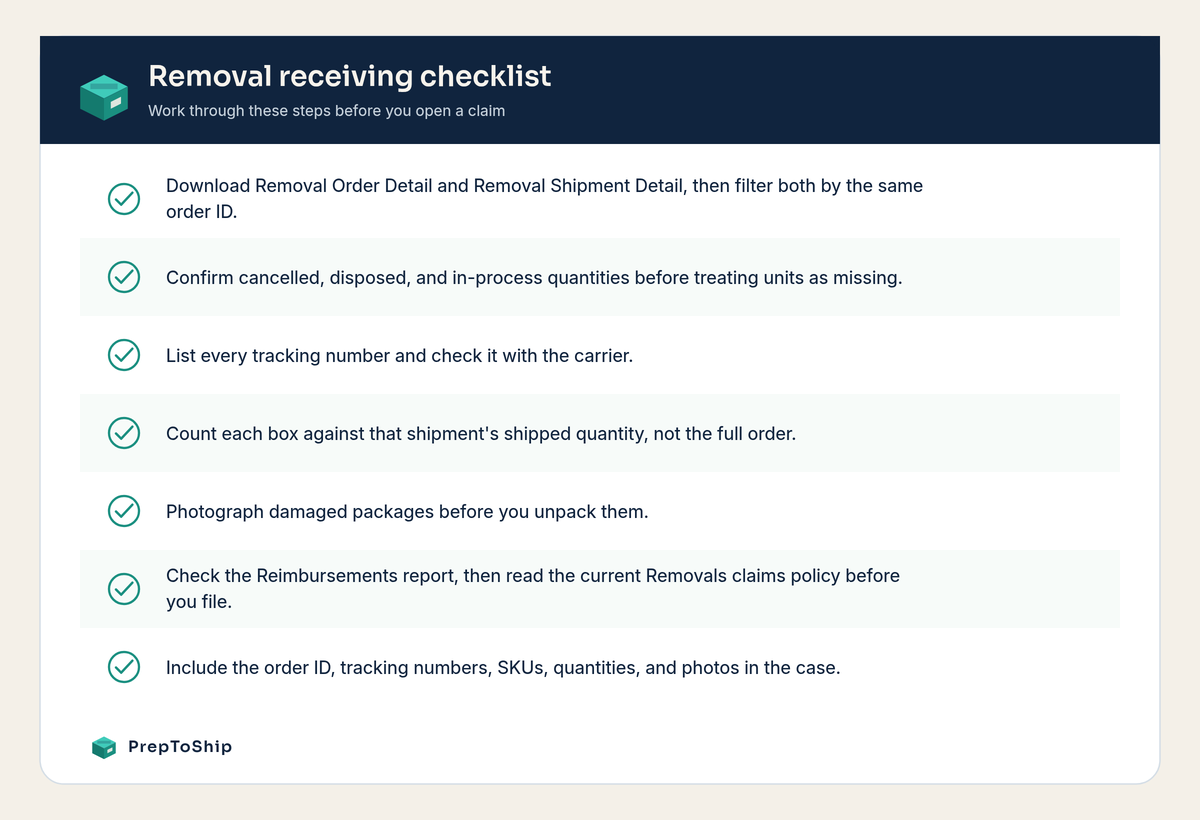
Removal receiving checklist
- Download Removal Order Detail and Removal Shipment Detail, then filter both by the same order ID.
- Confirm cancelled, disposed, and in-process quantities before treating units as missing.
- List every tracking number and check it with the carrier.
- Count each box against that shipment's shipped quantity, not the full order.
- Photograph damaged packages before you unpack them.
- Check the Reimbursements report, then read the current Removals claims policy before you file.
- Include the order ID, tracking numbers, SKUs, quantities, and photos in the case.
PrepToShip receives and checks removal shipments for sellers in Northern Virginia. If you want help matching boxes to Amazon's reports when they arrive, get in touch at https://preptoship.com.